How to Download Your Instagram Data
Open Meta Account or Accounts Center, go to Export your information, and create an export to your device. When it's ready, download the ZIP. If you only need it to check your followers, tick just Followers and following so the file stays small.
Quick settings if you only need followers
- Information
- Followers and following
- Format
- HTML or JSON
- Date range
- All time
- Destination
- Export to device
These settings give you a small file with everything an unfollower checker needs. Choosing All time matters: a shorter range can leave older followers out.
Open the official export page (new tab). You still choose your account and confirm the export on Instagram; the link does not generate a ZIP immediately.
On a computer
- Go to instagram.com and log in.
- Click More in the bottom-left corner, then Settings.
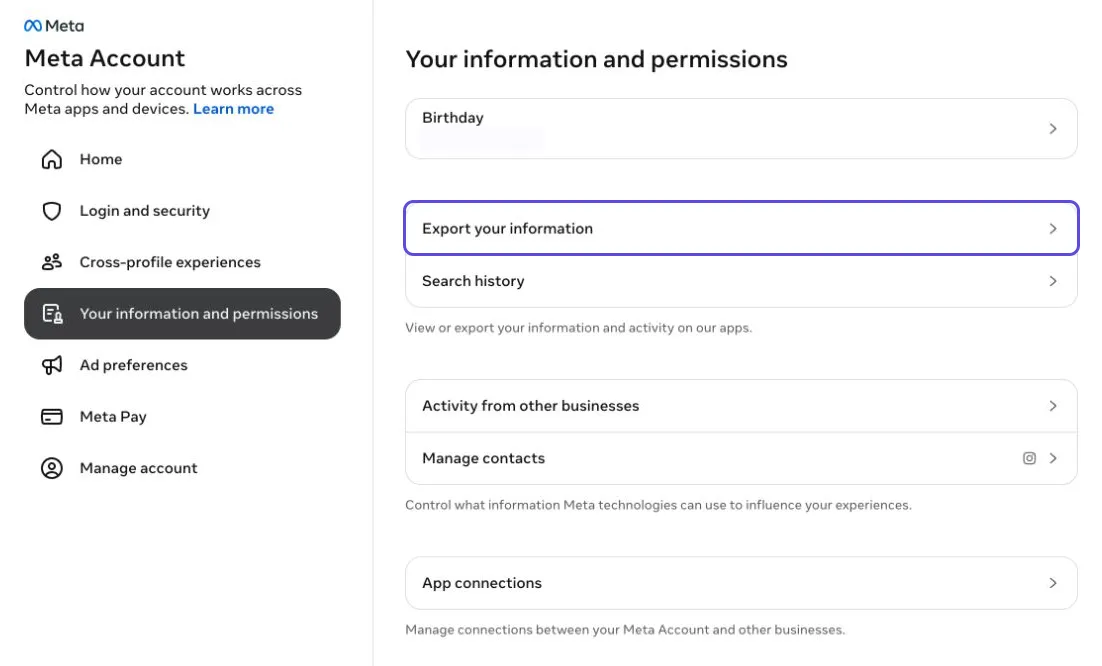
- Open Meta Account or Accounts Center, then Your information and permissions.
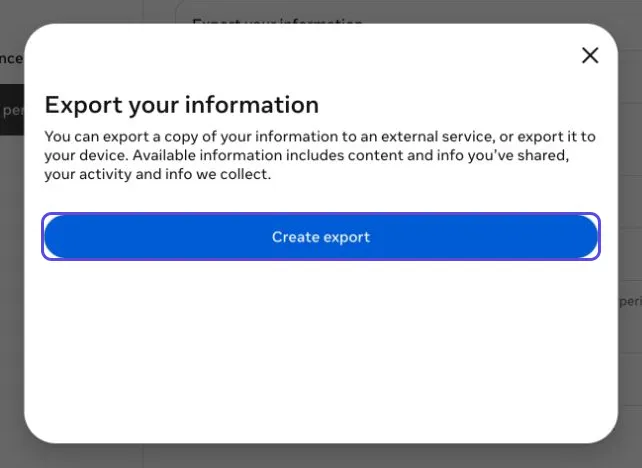
- Click Export your information, then Create export.
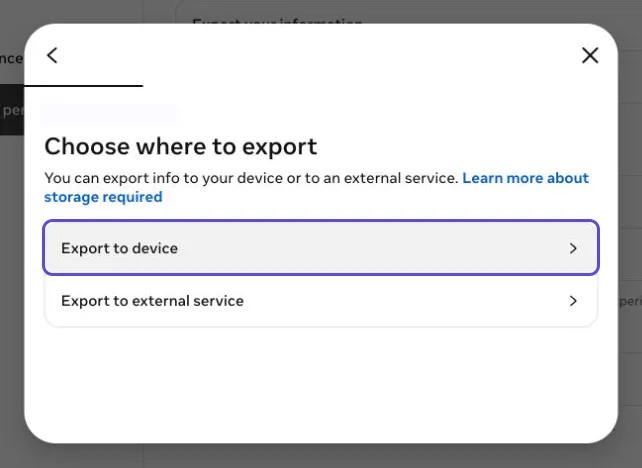
- Choose your Instagram profile if prompted, then select Export to device.
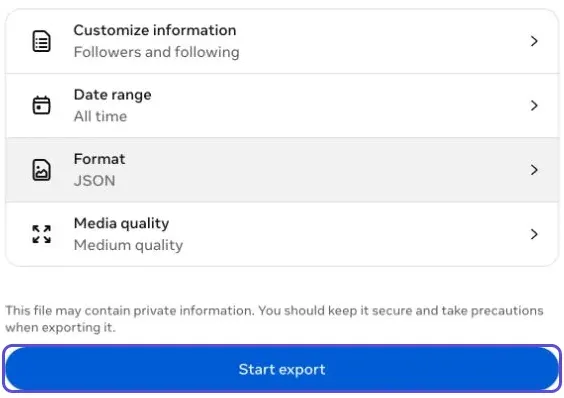
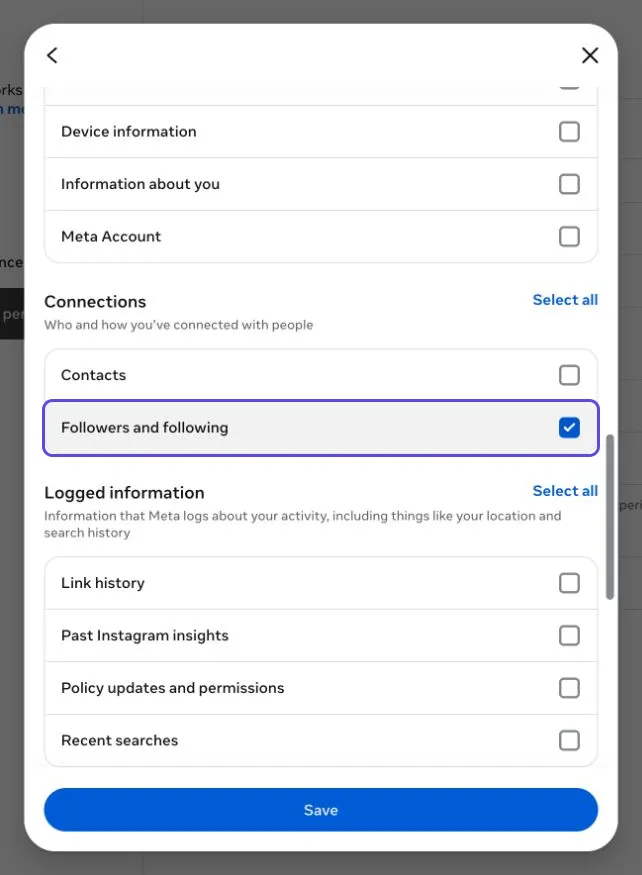
- In Customize information, make sure Followers and following under Connections is included. Select only that item for a smaller ZIP.
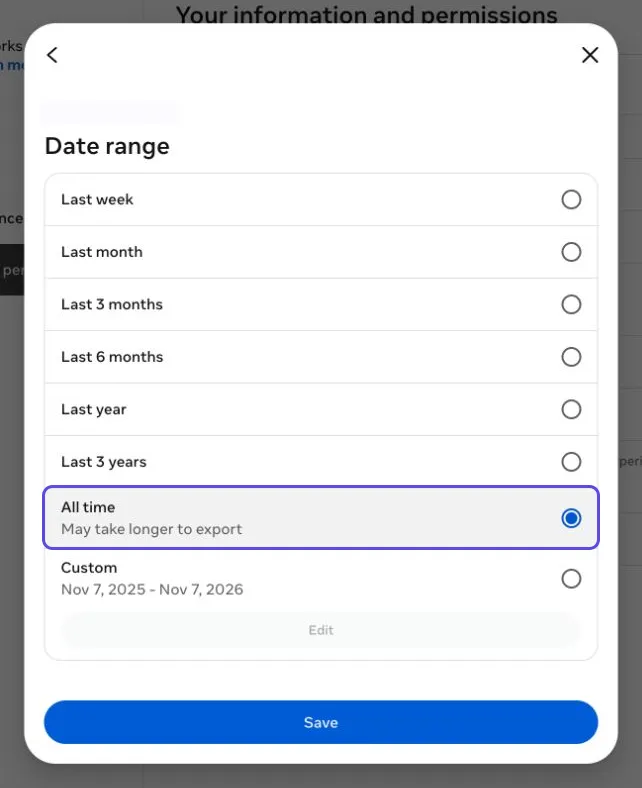
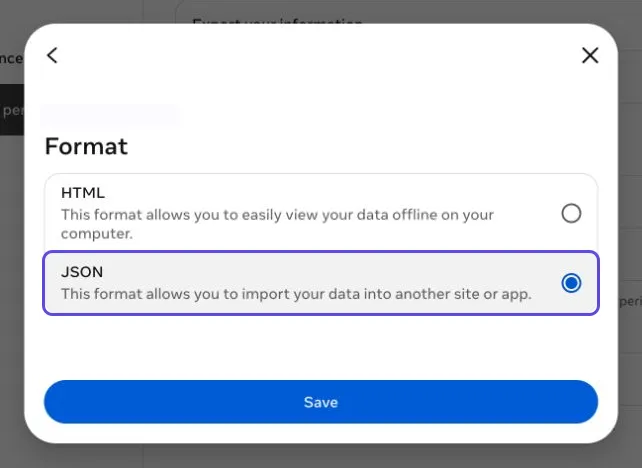
- Set Date range to All time. In Format, choose HTML or JSON.
- Click Start export. Instagram may ask for your password to confirm it's you.
In the Instagram app
Screenshots show Instagram on Android.
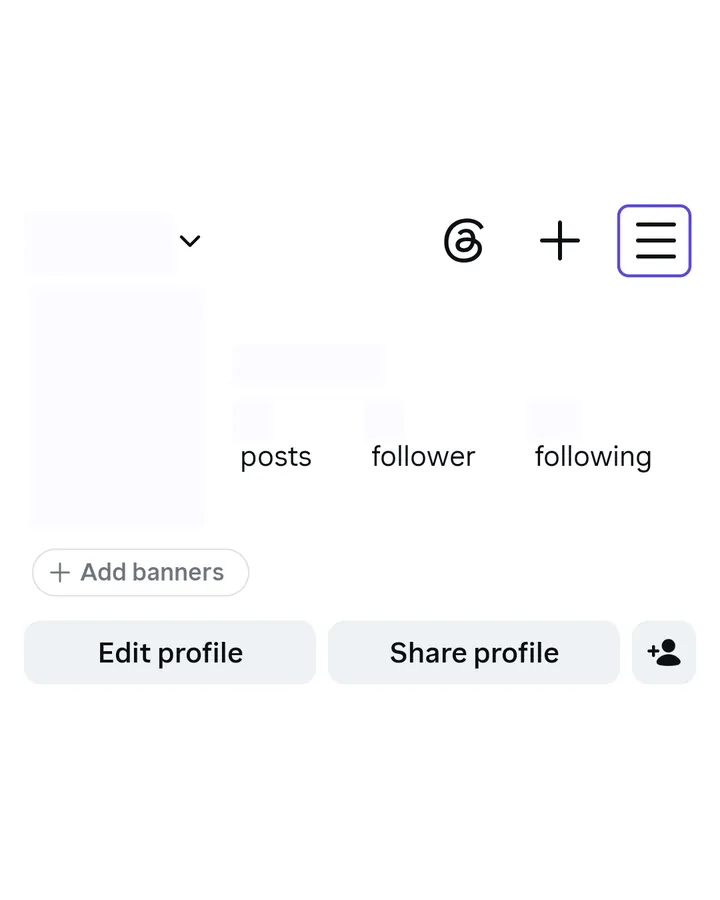
On your profile, tap the three-line menu in the top-right corner. 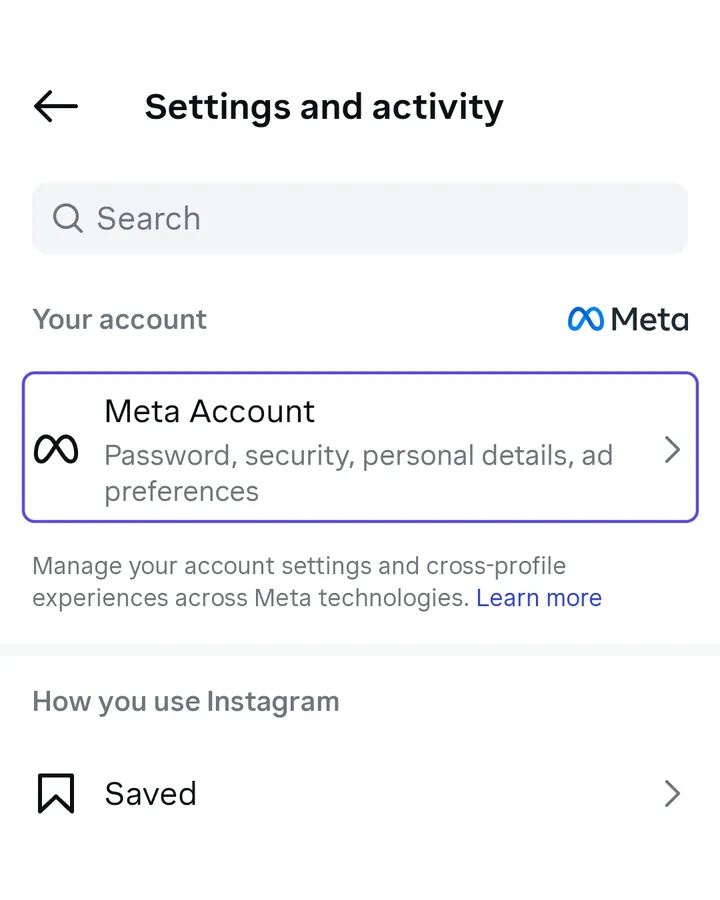
In Settings and activity, tap Meta Account (or Accounts Center). 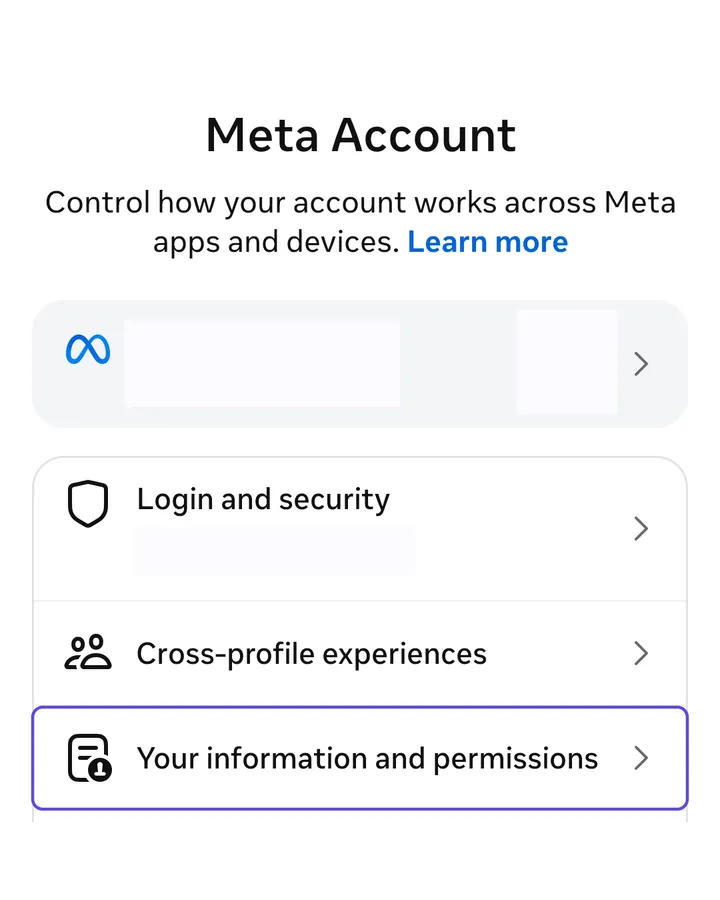
Tap Your information and permissions. 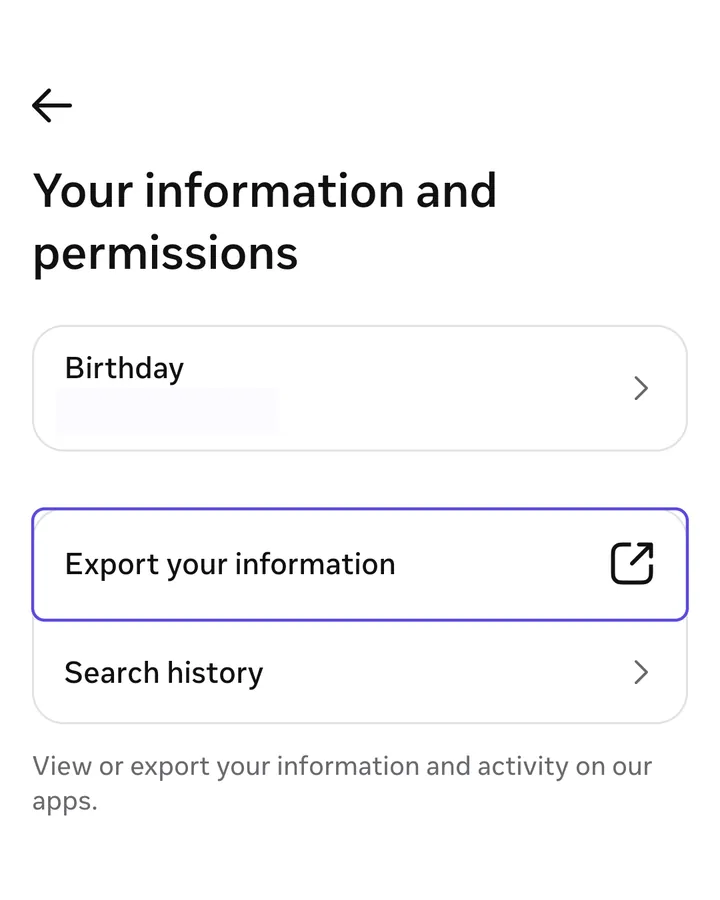
Tap Export your information to open the export page. 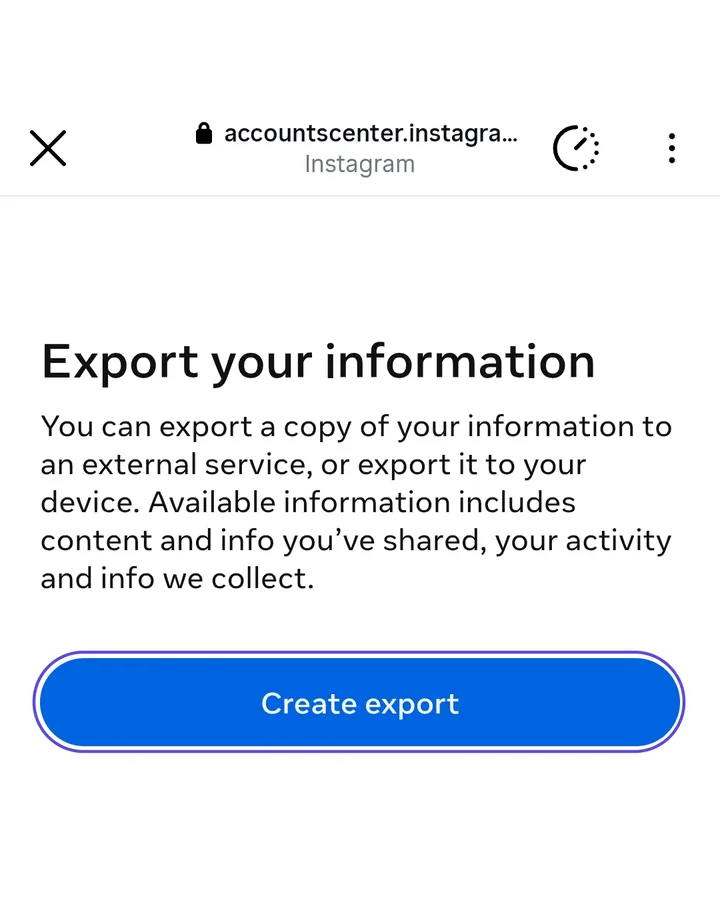
Tap Create export. 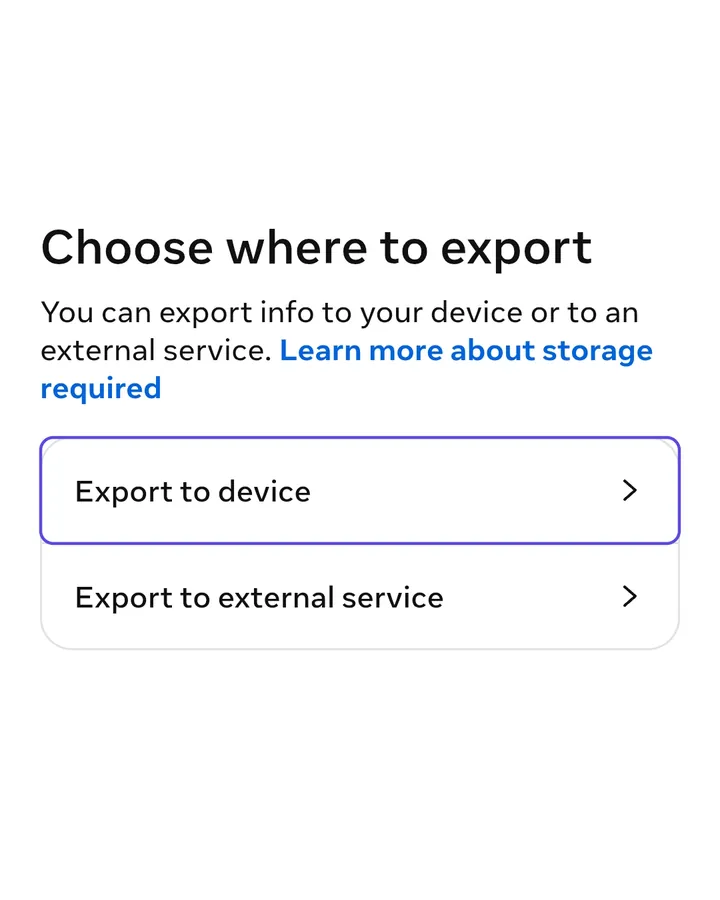
Choose your Instagram profile if prompted, then tap Export to device. 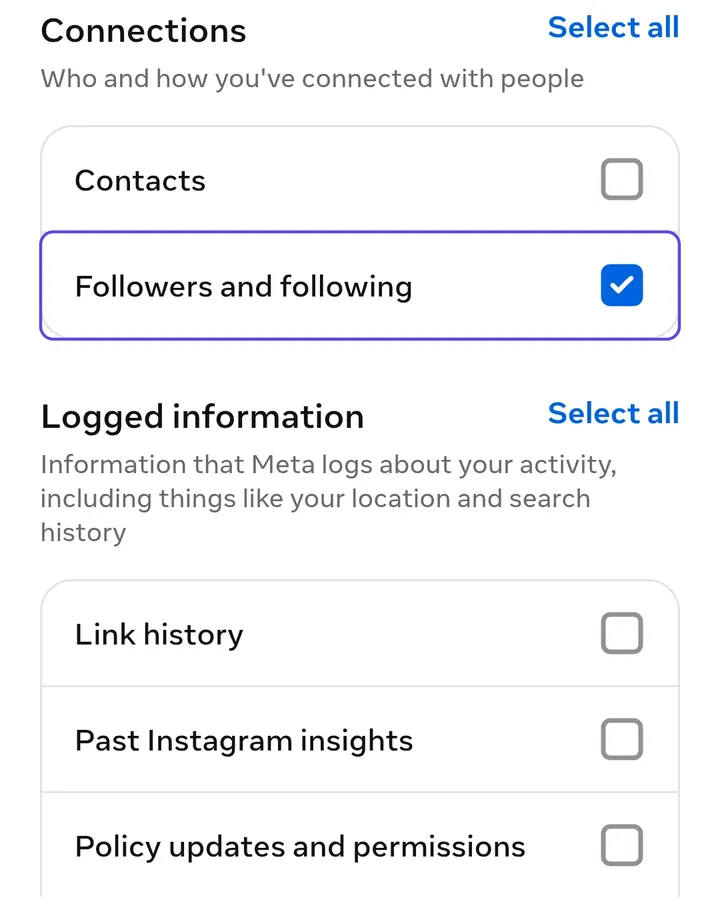
In Customize information, include Followers and following under Connections, then tap Save. Select only that item for a smaller ZIP. 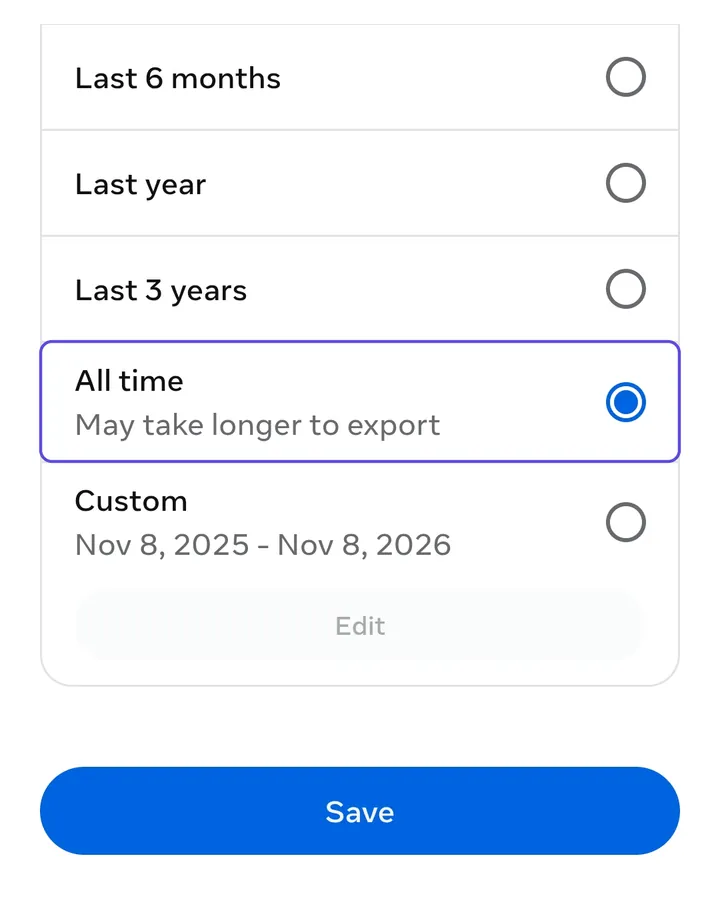
Set Date range to All time, then tap Save. 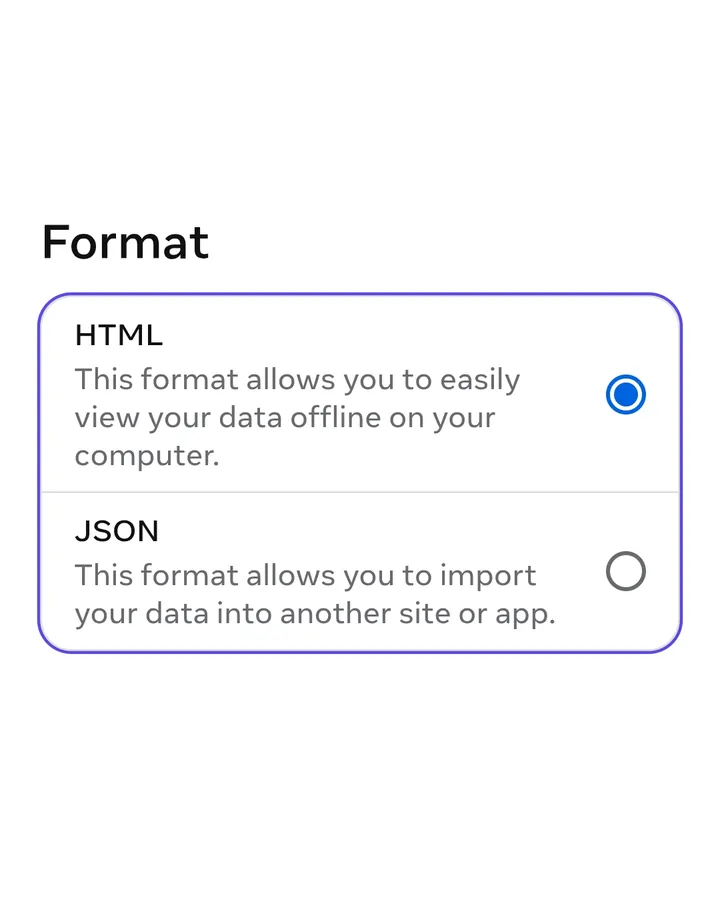
Choose HTML or JSON in Format, then tap Save. 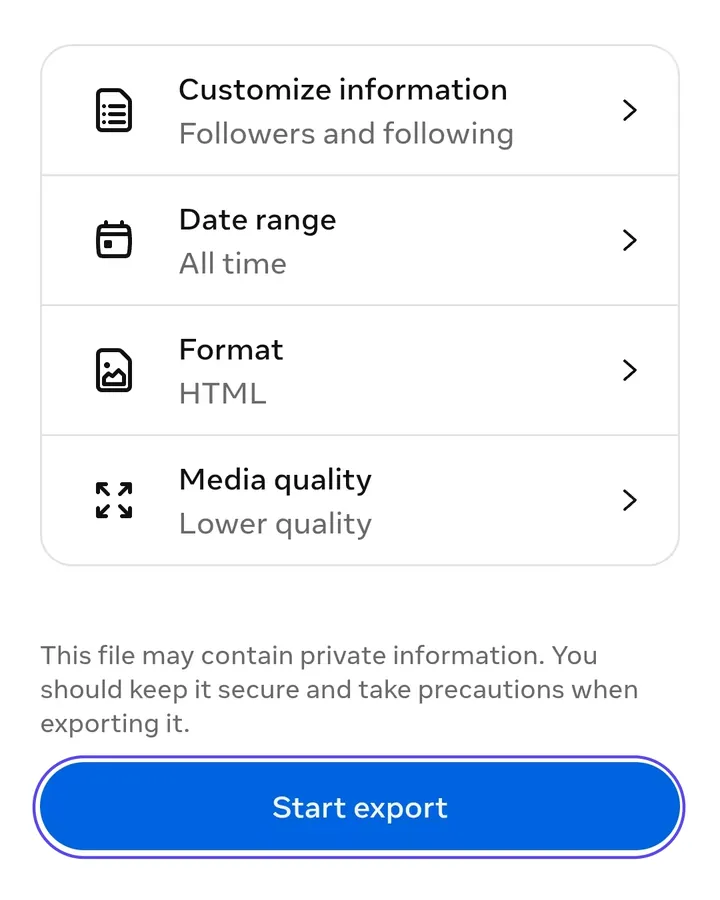
Review your choices, then tap Start export.
How long it takes and where to download
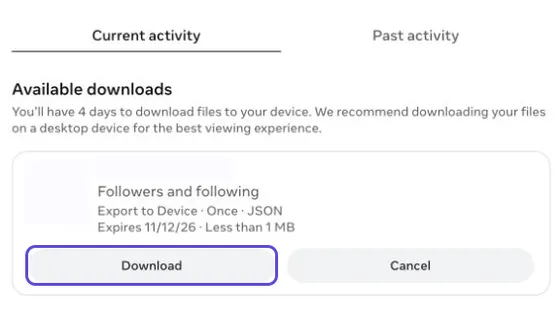
Instagram says an export can take up to 30 days to prepare. Once it's ready, you have 4 days to download it. Exports with only followers and following are much smaller than a full copy of your account, so pick only what you need.
To check on it, go back to Export your information and look under Current activity. When your export appears under Available downloads, select Download. Instagram may ask for your password again.
What's inside the ZIP
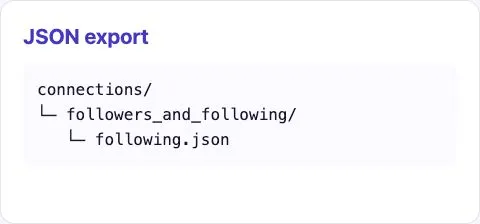
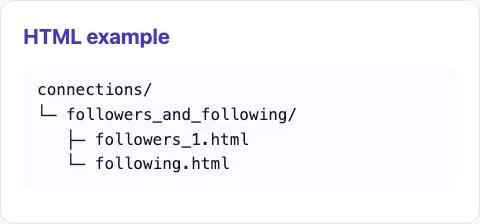
Look for followers_and_following inside connections. It can contain one or more followers files and a following file. In our real JSON export from an account with 0 followers, the followers file was absent. If your ZIP has a following list but no followers file, the checker asks you to confirm the account had 0 followers before continuing.
JSON files are plain data. HTML files are web pages you can open in a browser to read the lists yourself. This checker reads either format, so keep the original ZIP intact.
Common problems
- You picked HTML instead of JSON
- No need to start over. This site reads both. Choose the original ZIP without extracting it.
- The date range wasn't "All time"
- Your lists may be missing older followers or accounts you followed long ago. Request a new export with the date range set to All time.
- Followers and following wasn't selected
- The ZIP won't contain your lists, so nothing can be compared. Request a new export and tick Followers and following.
- The 4-day download window has passed
- The download link expires. Create a new export; the steps are the same.
- You can't find Meta Account or Accounts Center
- Look for either name near the top of Instagram's settings. Meta is gradually updating Accounts Center to Meta Account. If neither appears, log in to Instagram in your browser first, then open the export page directly. If that link doesn't load, use the Instagram app instead, or search for "export" in Instagram's settings. If your app is in another language, the menu names will be translated.
- You wanted Threads data
- Threads has its own export. The steps above only cover Instagram.
What to do with your file
Got your ZIP? Choose your whole ZIP to find who doesn't follow you back. Keep it zipped: we find the lists automatically. If you only care about non-followers, go straight to the who doesn't follow you back checker. Import a newer ZIP later to compare follower changes. Keep the original files if you use a different browser or clear saved site data.
FAQ
Can I download my data from Instagram?
Yes. Every account can request a copy of its data from Meta Account or Accounts Center, for free. You can pick everything or only certain types of information, like your followers.
Will it include deleted messages?
Don't count on it. The export is a copy of the information Instagram holds for your account when you request it. Check Instagram's Help Center for what's included. To check followers, you don't need messages at all, so leave them unticked.
Can I download only my followers list?
Yes. Under Customize information, select only Followers and following. You'll get a much smaller file with just those lists.
Is downloading my data safe?
Yes. It's Instagram's own tool, and the file comes straight from Instagram to your device. The ZIP contains personal information, so don't share it with anyone. If you use an online checker, pick one that reads the file in your browser instead of uploading it.
Can I export followers with a third-party tool?
You don't need one. Instagram's official export already includes your full followers and following lists. Tools that scrape followers usually ask you to log in, which puts your account at risk.